How to print the shop packet and part labels
On screen is free. For paper at the saw, Pro prints a shop packet and part labels. Every cabinet cut list page also has a free Print button.
Print for the shop (Pro)
In the optimizer, open the Shop tab.
- 1Shop packet PDF
- 2Part labels PDF
The Shop tab sits next to Saw list in cut mode on a computer. Both PDFs are also in the job’s ⋯ menu. They print on US Letter.
The shop packet
The first page of the packet for the 30″ base cabinet.
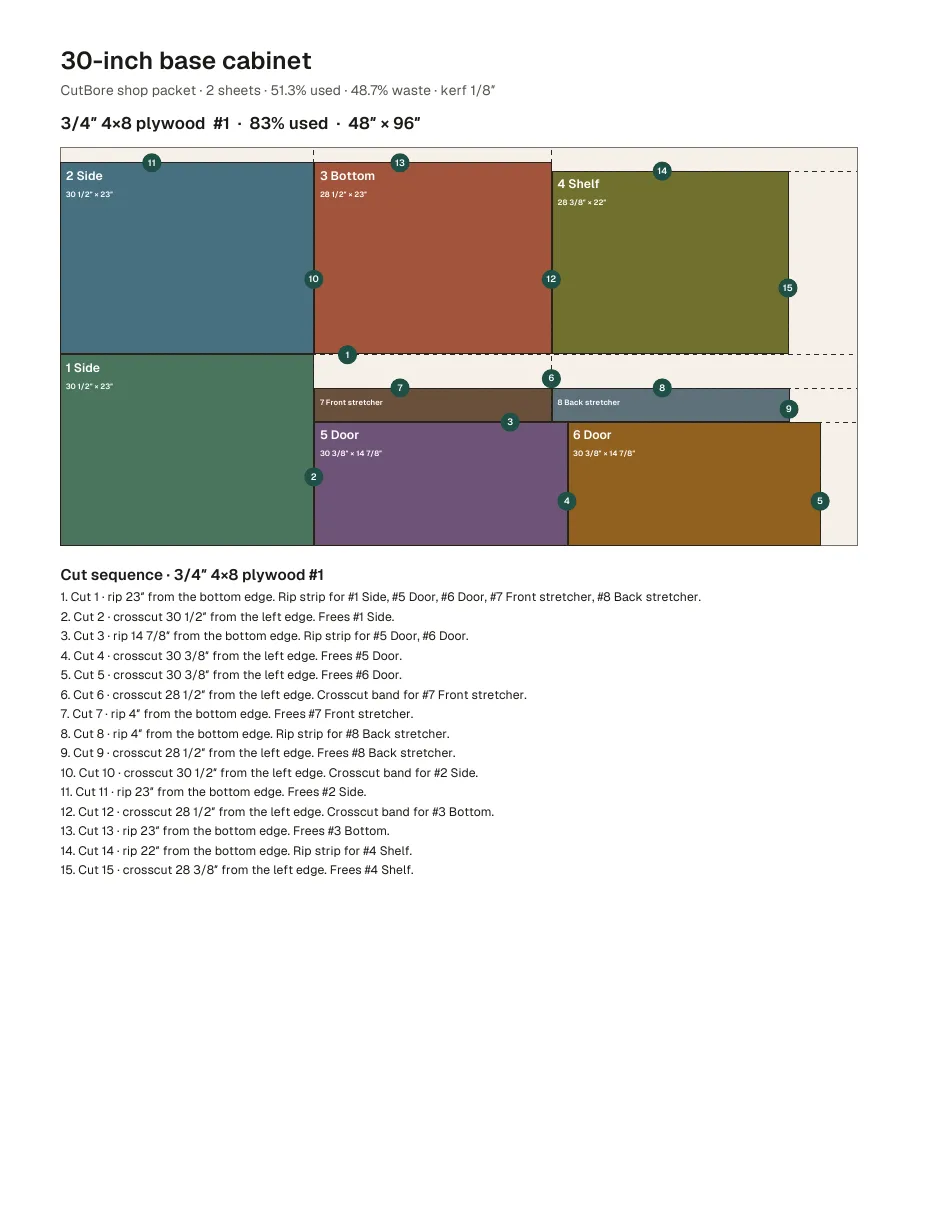
- 1A summary line: sheets, % used, waste and kerf.
- 2A diagram of each sheet, with the cut numbers on it.
- 3The cut sequence for that sheet, one line per cut.
- 4After the sheets: the parts table with grain and banding, banding totals, material cost and reusable offcuts.
Part labels
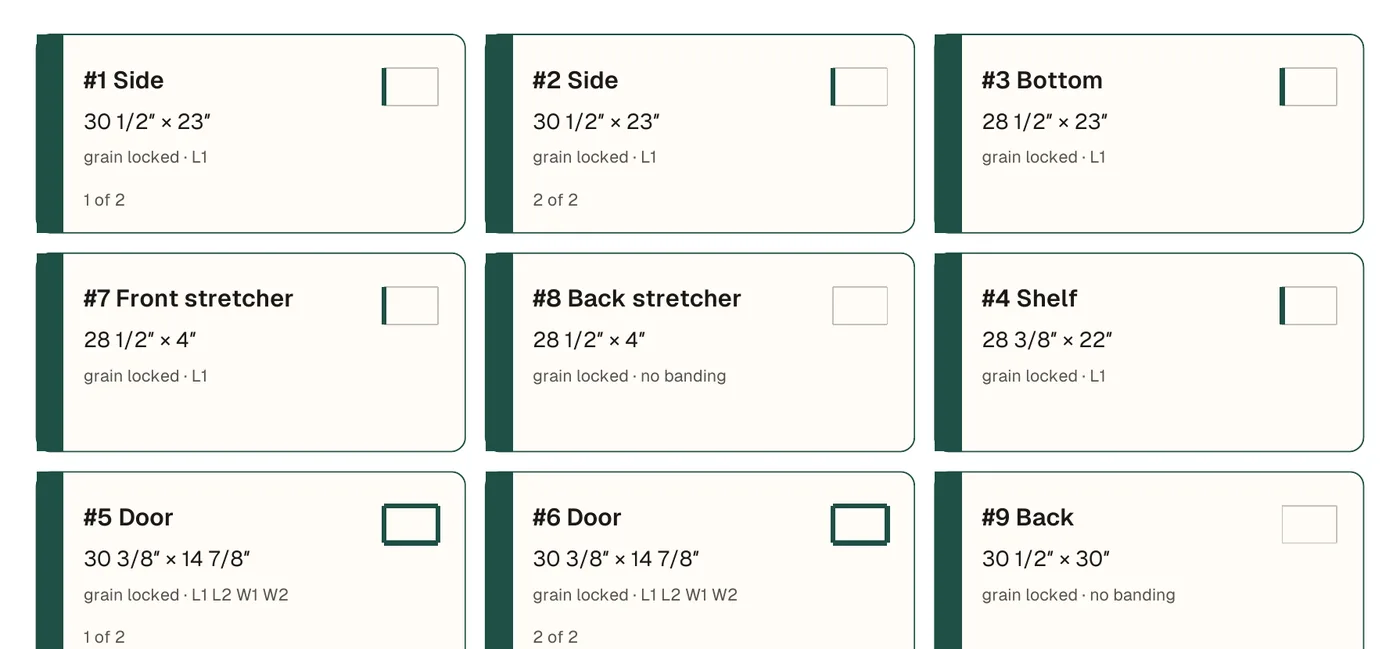
- 124 labels per Letter page, 3 across.
- 2Each shows the part number and name, its size, grain and banding, and “1 of 2” for multiples.
Print on plain paper or full-sheet label stock and cut them apart. Label numbers match the numbers on the nest.
Print a cabinet cut list (free)
Each cabinet cut list page has its own Print button.
- 1Open a cabinet page, for example the 30″ base cabinet.
- 2Click Print at the top of the plan, next to Open in CutBore.
- 3You get the parts table, the nest and the numbered cut order.