How to lock grain direction on plywood parts
Face grain shows on doors and finished sides, so a nest that turns those parts ruins the look. Lock them, and let hidden parts turn.
Set grain on each part
On a computer, each part has a Grain setting. The numbers match the list.
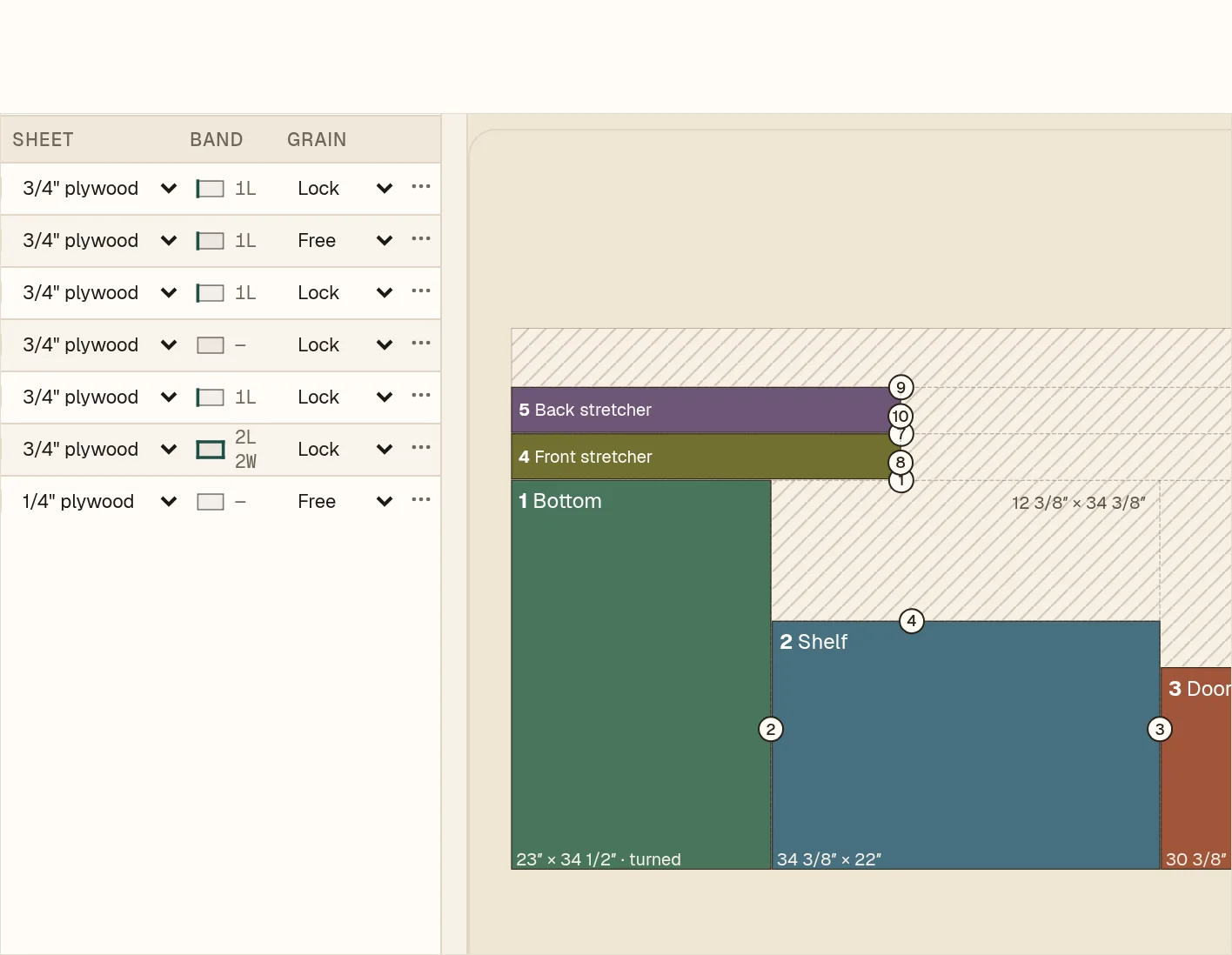
- 1The Grain column: Free, Grain or Lock.
- 2Free lets the part turn to fit.
- 3Lock never turns the part.
- 4A part that was turned says “turned” on the sheet.
Grain lets a part turn but keeps it following the sheet grain. On smaller laptop screens and tablets in landscape, the Grain column is in the row’s ⋯ menu: Grain free, Grain along length or Grain along width.
Free or Lock
- 1On the 36″ base cabinet, set Bottom from Lock to Free.
- 2The optimizer turns it to fit, and the tile reads “turned”.
On a phone
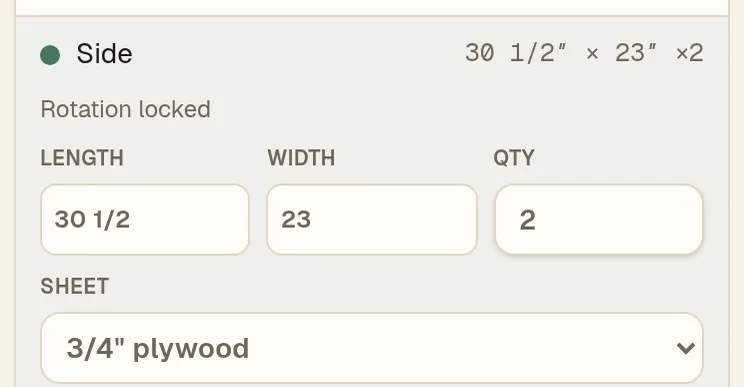
- 1Open a part card to see its grain: Rotation locked, Follow grain or Free to rotate.
Templates come with grain set. To change a part’s grain, open the job on a computer or a tablet in landscape. Sheet grain can be set on a phone in Materials.